New in SwiftUI 3: AsyncImage in SwiftUI 3
WWDC21 introduced a new view called AsyncImage for SwiftUI 3. Like the name suggests this view is responsible for loading images asynchronously and displaying the image once it’s finished loading.
In this article, we will take a look at AsyncImage from its definition to a practical use case it can be applied to.
AsyncImage can load images from local resources or from external resources but mostly you are gonna find yourself using this view to load network images coming from an API.
Let’s first take a look at its initializer:
public init(url: URL?, scale: CGFloat = 1) where Content == Image
This init only expects two parameters.
url: represents a url that points to the image
scale: defines the scale of source image. This parameter has a default value of 1 but you can specify the value of your choice based on the device’s scale.
Let’s create an example for this init. For our examples, we will use a free API endpoint from
unsplash which returns a random image from its collection of images.
Let's get started
Create a new file from SwiftUI template. We will call this file AsyncImageExample and it will have our new AsyncImage view as shown below
import SwiftUIstruct AsyncImageExample: View {
    var body: some View {
        AsyncImage(url: URL(string: "https://source.unsplash.com/random"))
    }
}
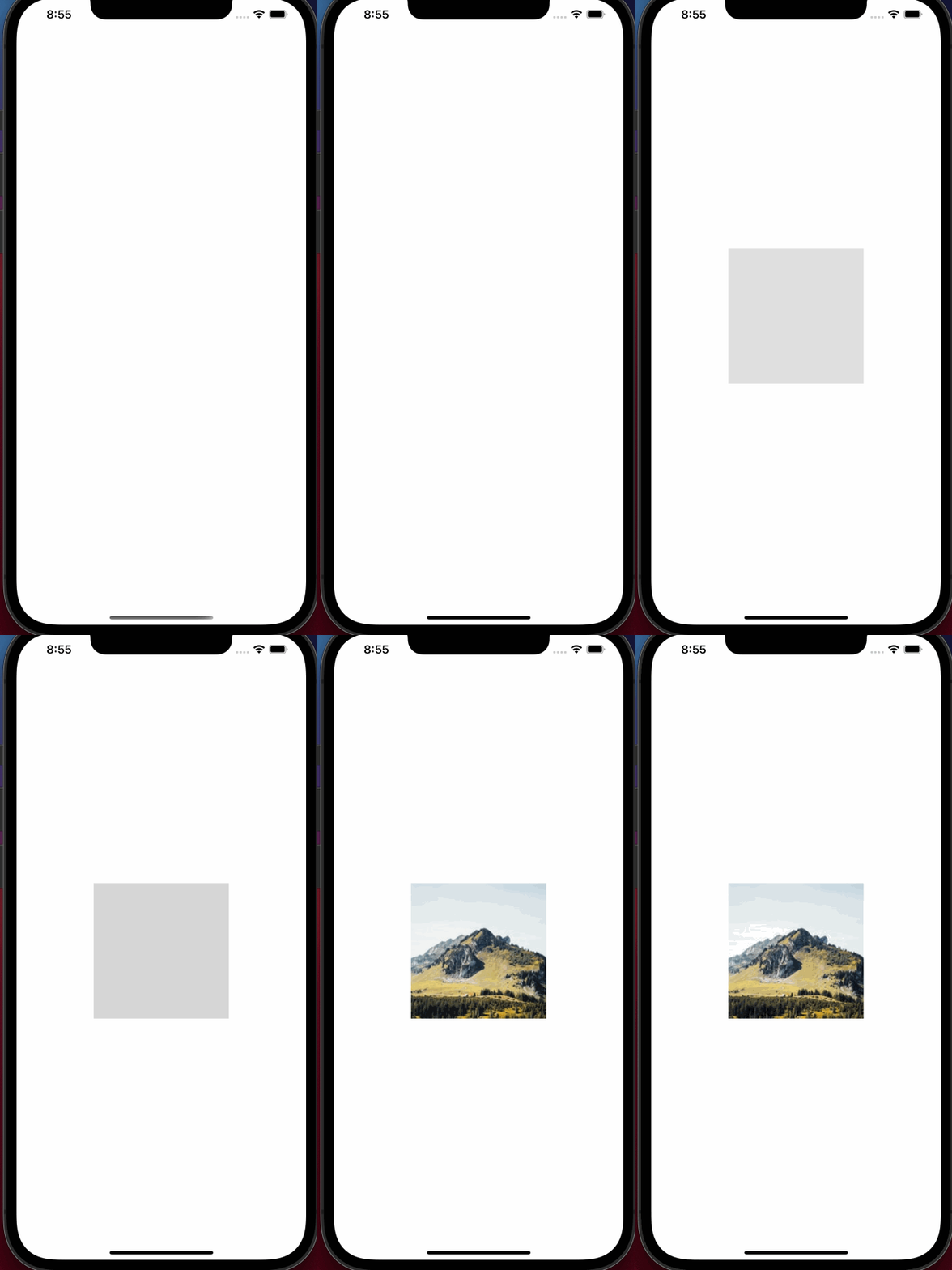
Build and run to see this in action
While the image is being loaded, SwiftUI displays a gray color placeholder. This placeholder is a view that takes as much space as it can and is offered by its parent view. Reason for this behavior is because the image’s size is not known until it’s loaded. Once the image is loaded its size is known and the view adjusts the size accordingly.
At this point we are getting a full size image which can be of any resolution. Random API from unsplash, offers a way to request a resized version so we will modify our example to request a smaller version of an image.
struct AsyncImageExample: View {
    var body: some View {
        AsyncImage(url: URL(string: "https://source.unsplash.com/random/200x200"))
    }
}
Note that our placeholder image is still too big and is taking the whole screen. We can solve that by adding a frame modifier to the AsyncImage view.
struct AsyncImageExample: View {
    var body: some View {
        AsyncImage(url: URL(string: "https://source.unsplash.com/random/200x200"))
        .frame(maxWidth: 200, maxHeight: 200)
    }
}
Setting the frame would only resize the container not the image. If our image is too big then it can be drawn outside of bounds.
To change the size of our image, we will have to use another init of AsyncImage which will give us the image in completion so we can adjust its size, aspectRatio etc. We can also define our own placeholder view.
Signature to this init looks like following:
public init<I, P>(url: URL?, scale: CGFloat = 1, @ViewBuilder content: @escaping (Image) -> I, @ViewBuilder placeholder: @escaping () -> P) where Content == _ConditionalContent<I, P>, I : View, P : View
We have two new parameters here.
content is a ViewBuilder closure that provides the Image view when image is loaded.
placeholder is a ViewBuilder closure that provides the view to show while image is being loaded.
struct AsyncImageExample: View {
    var body: some View {
        AsyncImage(url: URL(string: "https://source.unsplash.com/random/200x200"), content: {
            image in
            image.resizable()
                .aspectRatio(contentMode: .fit)
                .frame(maxWidth: 200, maxHeight: 200)
        }, placeholder: {
            ProgressView()
        })
    }
}
AsyncImagePhase
If you need more control over various loading phases for image then use following init , init with AsyncImagePhase gives you more control over the view and lets you take action when image is yet to load, loaded or failed to load. Init signature looks like this:
public init(url: URL?, scale: CGFloat = 1, transaction: Transaction = Transaction(), @ViewBuilder content: @escaping (AsyncImagePhase) -> Content)
url and scale parameters are same as the first init
transaction param is used to track the phase changes.
content is the ViewBuilder closure that provides the view for each phase of loading process. Closure receives AsyncImagePhase value. AsyncImagePhase is an enum and has following cases:
empty Image is not loaded yet
success(Image) Image is successfully loaded and provided as parameter
failure(Error) Image failed to load and error is provided as parameter
We will modify our AsyncImage view a bit to move url into a variable and at the same time we will also create transaction variable.
struct AsyncImageExample: View {

    let url = URL(string: "https://source.unsplash.com/random/200x200")
    let transaction = Transaction(animation: Animation.easeIn(duration: 5.0))

    var body: some View {
        AsyncImage(url: url, scale: 1.0, transaction: transaction) { imagePhase in

            switch imagePhase {
            case .empty:
                ProgressView()

            case .success(let image):
                image
                    .resizable()
                    .aspectRatio(contentMode: .fit)
                    .frame(maxWidth: 200, maxHeight: 200)

            case .failure(let err):
                VStack {
                    Text("Failed to load image.")
                    Text(err.localizedDescription)
                }

            @unknown default:
                EmptyView()
            }

        }
    }
}
Notice switch statement with imagePhase , which gives us access to various stages of download process.
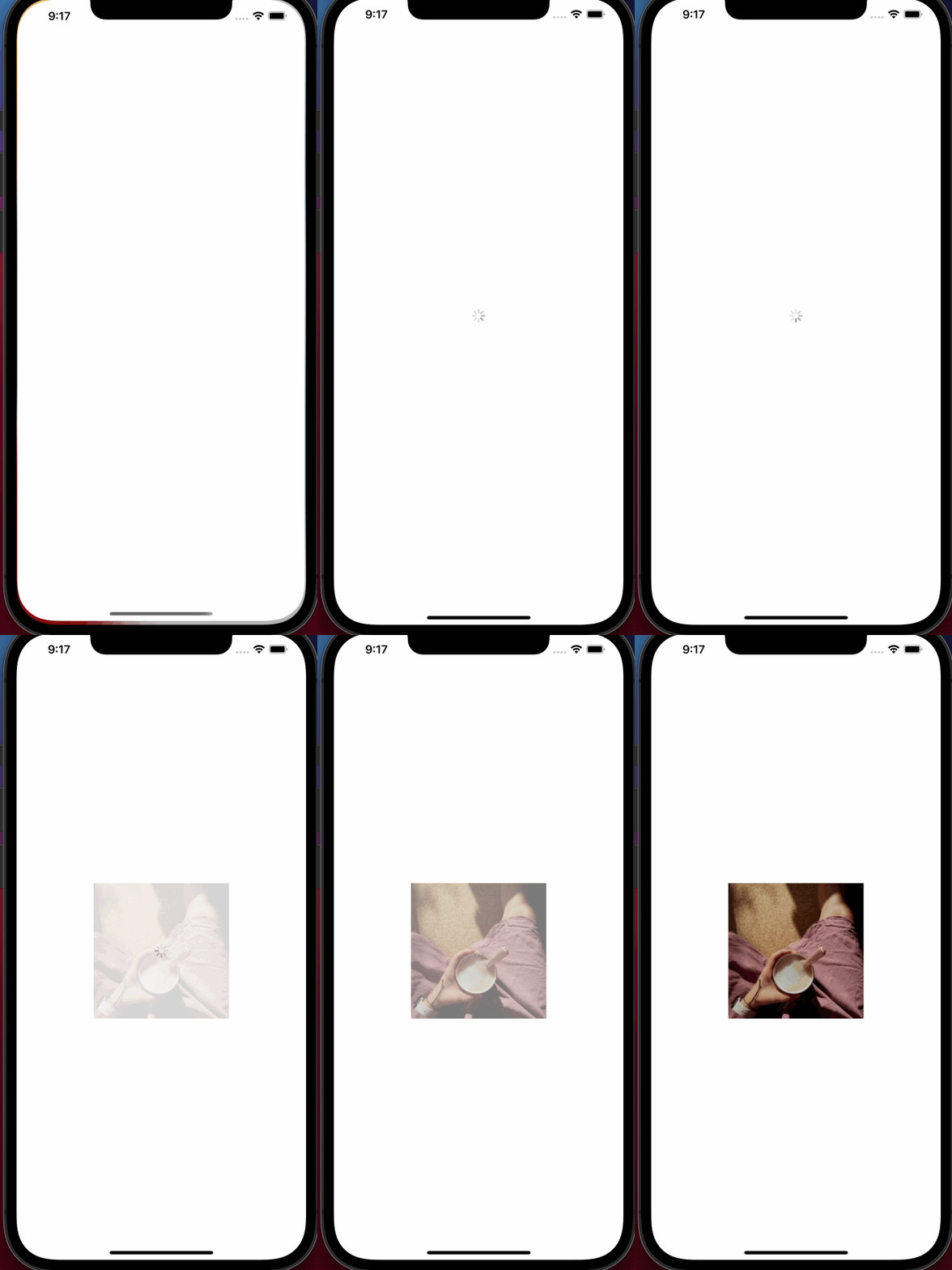
Let’s add little delay to the url so we can appreciate progressView a bit more😍.
To emulate delay on a certain API response, we can use
deelay.me service.
https://deelay.me/<delay in milliseconds>/<original url>
Let’s change our image url to following:
https://deelay.me/2000/https://source.unsplash.com/random/200x200
Changed code will look like this:
struct AsyncImageExample: View {

    let url = URL(string: "https://deelay.me/2000/https://source.unsplash.com/random/200x200")
    let transaction = Transaction(animation: Animation.easeIn(duration: 5.0))

    var body: some View {
        AsyncImage(url: url, scale: 1.0, transaction: transaction) { imagePhase in

            switch imagePhase {
            case .empty:
                ProgressView()

            case .success(let image):
                image
                    .resizable()
                    .aspectRatio(contentMode: .fit)
                    .frame(maxWidth: 200, maxHeight: 200)

            case .failure(let err):
                VStack {
                    Text("Failed to load image.")
                    Text(err.localizedDescription)
                }

            @unknown default:
                EmptyView()
            }

        }
    }
}
Who doesn’t love to wait and stare at progress bar while image loads 🤩
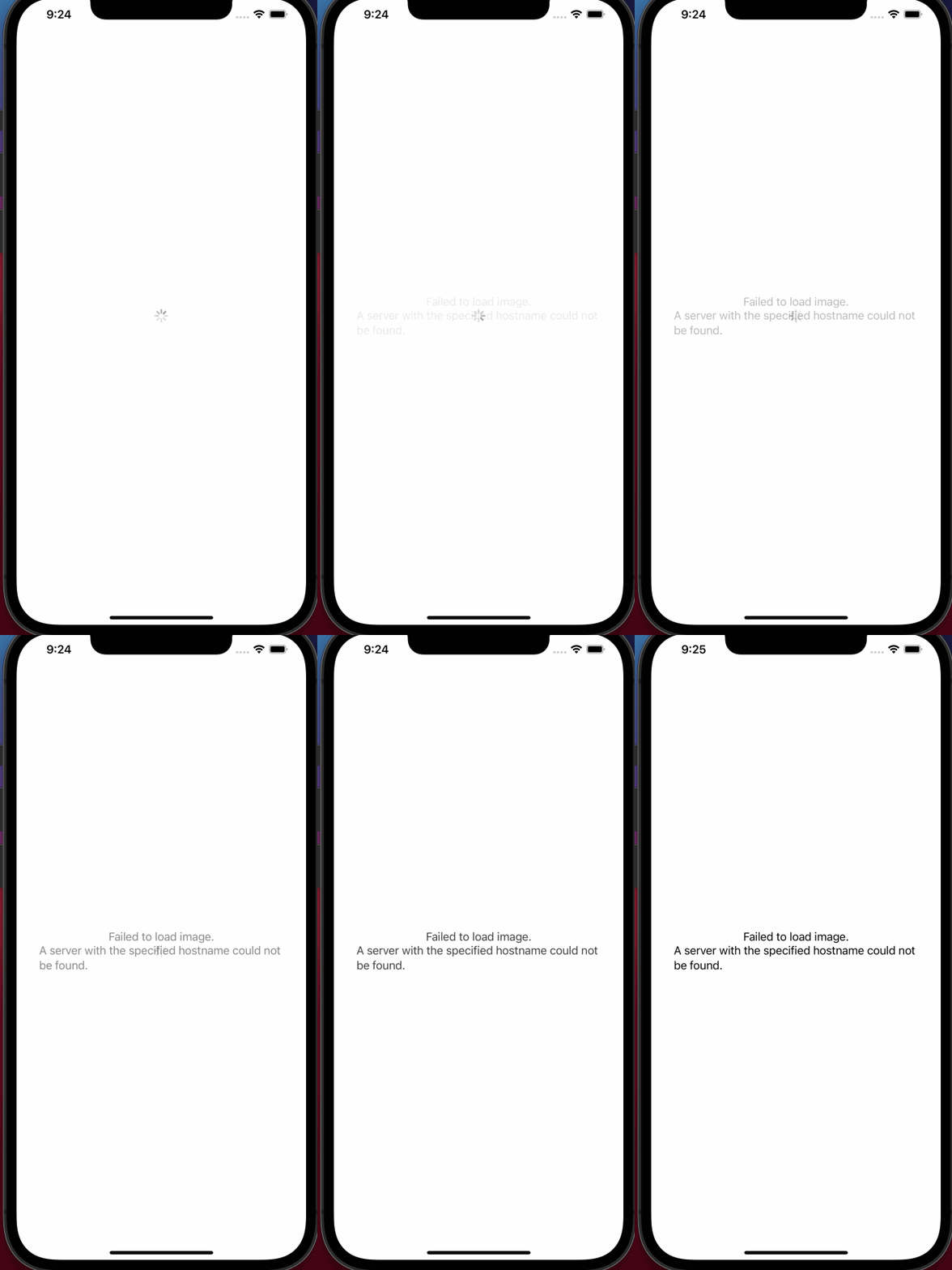
Let’s explore error scenario. To emulate error case we will introduce additional s in
https://source.unsplash.com like below. This will make API unreachable.
let url = URL(string: "https://deelay.me/2000/https://sources.unsplash.com/random/200x200")
Our new code will look like this:
struct AsyncImageExample: View {

    let url = URL(string: "https://deelay.me/2000/https://sources.unsplash.com/random/200x200")
    let transaction = Transaction(animation: Animation.easeIn(duration: 5.0))

    var body: some View {
        AsyncImage(url: url, scale: 1.0, transaction: transaction) { imagePhase in

            switch imagePhase {
            case .empty:
                ProgressView()

            case .success(let image):
                image
                    .resizable()
                    .aspectRatio(contentMode: .fit)
                    .frame(maxWidth: 200, maxHeight: 200)

            case .failure(let err):
                VStack {
                    Text("Failed to load image.")
                    Text(err.localizedDescription)
                }

            @unknown default:
                EmptyView()
            }

        }
    }
}
Async Image in List
Now that we know enough about AsyncImage(enough to get in trouble at least🤣). We will use it inside a list and for that (my friend) we will create a dummy model:
struct SampleModel: Identifiable {
    let id = UUID()
    let url = URL(string: "https://deelay.me/\(Int.random(in: 200...5000))/https://source.unsplash.com/random/100x100")
    let name = "Image \(Int.random(in: 100...5000))"
}extension SampleModel {
    static var data: [SampleModel] {
        var data = [SampleModel]()
        for _ in 0...10 {
            data.append(SampleModel())
        }
        return data
    }
}
As the code above shows, we will have a SampleModel which will conform to Identifiable protocol and will have id, url and name properties.
Url is the url we have used so far but we will randomize the delay so images load at different time not all together.
Time to write our view:
struct AsyncImageListExample: View {

    let data = SampleModel.data

    var body: some View {
        List {
            ForEach(data) { item in
                LazyHStack {
                    getAsyncImage(for: item.url)
                    Text(item.name)
                }
            }
        }
    }

    private func getAsyncImage(for url: URL?) -> some View {
        AsyncImage(url: url, scale: 1.0, transaction: Transaction(animation: Animation.easeIn(duration: 2))) { imagePhase in

            switch imagePhase {
            case .empty:
                ProgressView()

            case .success(let image):
                image
                    .resizable()
                    .aspectRatio(contentMode: .fit)
                    .frame(maxWidth: 100, maxHeight: 100)

            case .failure(let err):
                VStack {
                    Text("Failed to load image.")
                    Text(err.localizedDescription)
                }

            @unknown default:
                EmptyView()
            }

        }
    }
}
In this view, we have data variable to store our sample data and then we create a List inside the list, we have ForEach and LazyHStack .
We are also creating a helper function which will help us create AsyncImage for a given url.
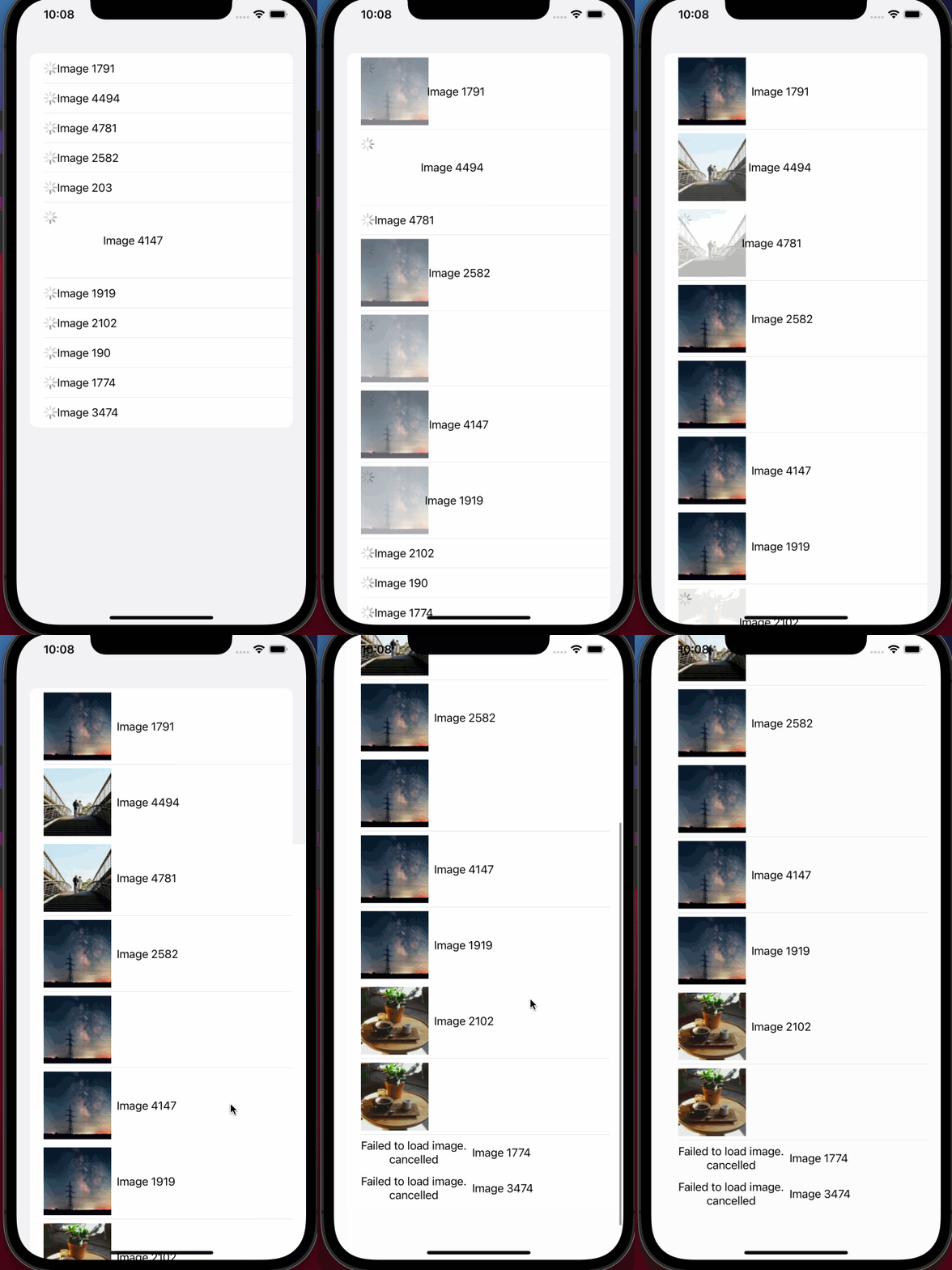
With that change, here is our AsyncImage inside list:
Our AsyncView not only shows images but error cases as well.
With that, we have reached the end of this article. Thank you once again for reading, if you liked it, don’t forget to subscribe.