- Oct 24, 2024
RealityKit & ARKit in SwiftUI — Adding Multiple Items
- DevTechie
RealityKit places anchors based on the anchoring component’s target property. For example, you can configure an anchor entity to rest on a detected horizontal surface in an AR scene like a table or floor, and RealityKit automatically places that anchor once it detects an appropriate horizontal plane in the real world.
We position virtual items on top of the detected anchor. We’ve successfully placed a single item into the AR scene by detecting a horizontal anchor. Now, let’s enhance the experience by adding multiple items.
Next, we’ll introduce a plane, upon which the previously created box will rest. To specify the location where the plane should appear, we’ll set the position of the newly created plane.
Our ARViewController looks like this
struct ARViewContainer: UIViewRepresentable {

    func makeUIView(context: Context) -> ARView {

        let arView = ARView(frame: .zero)

        let anchor = AnchorEntity(
            plane: .horizontal
        )

        let material = SimpleMaterial(
            color: .purple,
            isMetallic: true
        )

        let box = ModelEntity(
            mesh: .generateBox(
                size: 0.2
            ),
            materials: [material]
        )

        anchor.addChild(box)
        arView.scene.anchors.append(anchor)
        return arView

    }

    func updateUIView(_ uiView: ARView, context: Context) {}

}
We will start by creating an orange horizontal plane.
struct ARViewContainer: UIViewRepresentable {

    func makeUIView(context: Context) -> ARView {

        let arView = ARView(frame: .zero)

        let anchor = AnchorEntity(
            plane: .horizontal
        )

        let material = SimpleMaterial(
            color: .purple,
            isMetallic: true
        )

        let box = ModelEntity(
            mesh: .generateBox(
                size: 0.2
            ),
            materials: [material]
        )

        let hPlane = ModelEntity(
            mesh: .generatePlane(
                width: 0.5,
                depth: 0.5
            ),
            materials: [SimpleMaterial(
                color: .orange,
                isMetallic: true
            )]
        )
Before we add this plane to the anchor, let’s position this plane to sit below the box. We will adjust the y position of box to make it sit on top of the plane.
struct ARViewContainer: UIViewRepresentable {

    func makeUIView(context: Context) -> ARView {

        let arView = ARView(frame: .zero)

        let anchor = AnchorEntity(
            plane: .horizontal
        )

        let material = SimpleMaterial(
            color: .purple,
            isMetallic: true
        )

        let box = ModelEntity(
            mesh: .generateBox(
                size: 0.2
            ),
            materials: [material]
        )

        let hPlane = ModelEntity(
            mesh: .generatePlane(
                width: 0.5,
                depth: 0.5
            ),
            materials: [SimpleMaterial(
                color: .orange,
                isMetallic: true
            )]
        )

        box.position = simd_float3(0, 0.2, 0)

        anchor.addChild(hPlane)
        anchor.addChild(box)
        arView.scene.anchors.append(anchor)
        return arView

    }
Build and run
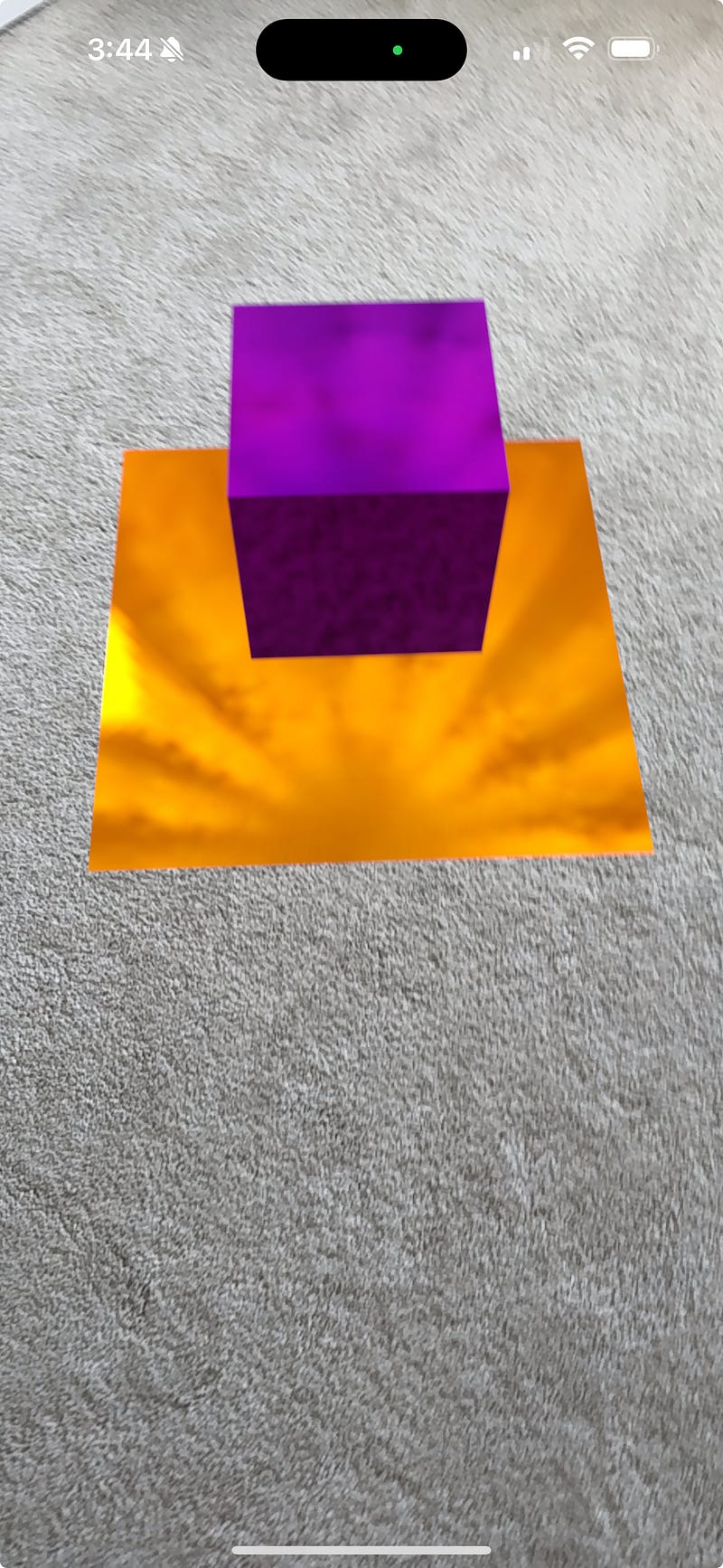
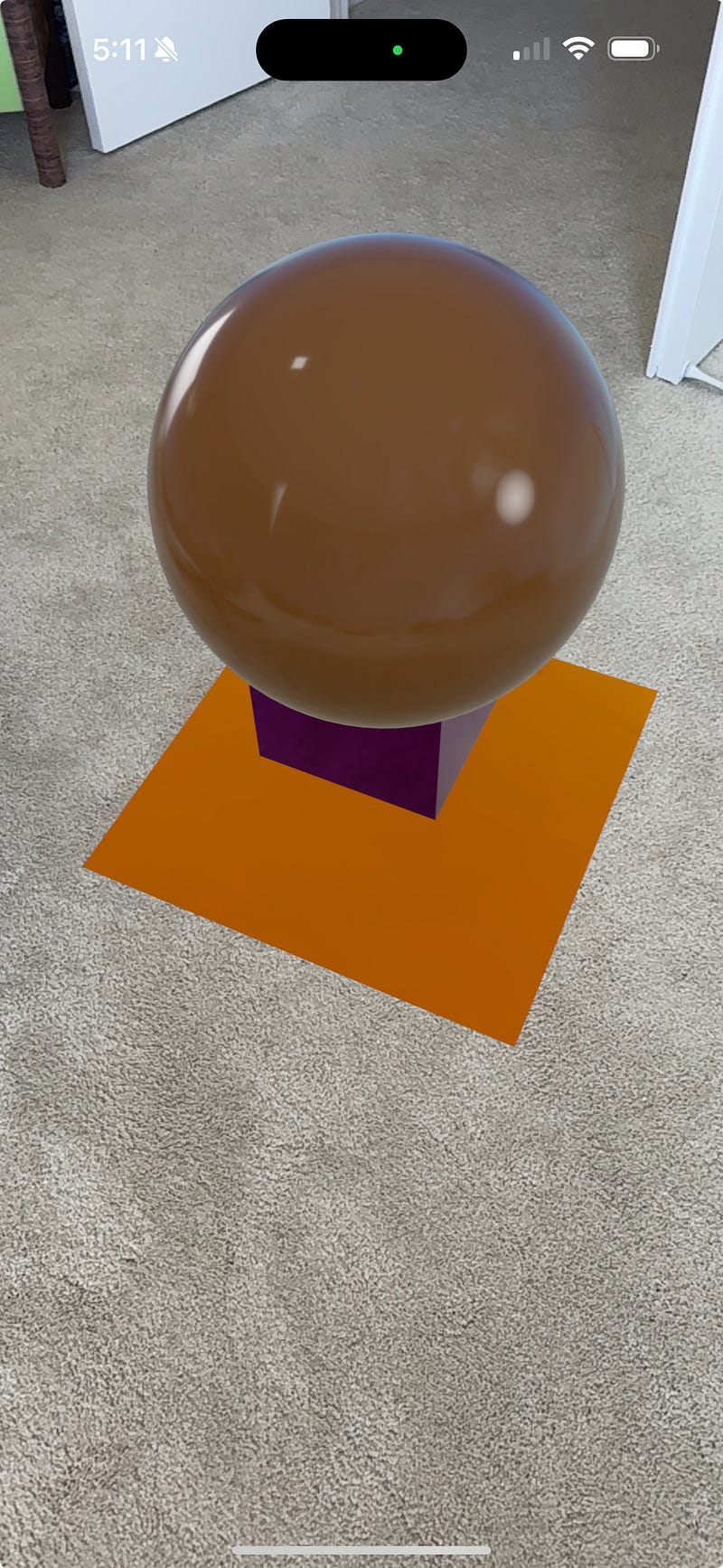
Let’s add a sphere into the scene as well. We will stack sphere on the top of the cube.
struct ARViewContainer: UIViewRepresentable {

    func makeUIView(context: Context) -> ARView {

        let arView = ARView(frame: .zero)

        let anchor = AnchorEntity(
            plane: .horizontal
        )

        let material = SimpleMaterial(
            color: .purple,
            isMetallic: true
        )

        let box = ModelEntity(
            mesh: .generateBox(
                size: 0.2
            ),
            materials: [material]
        )

        let hPlane = ModelEntity(
            mesh: .generatePlane(
                width: 0.5,
                depth: 0.5
            ),
            materials: [SimpleMaterial(
                color: .orange,
                isMetallic: true
            )]
        )

        let sphere = ModelEntity(
            mesh: .generateSphere(
                radius: 0.2
            ),
            materials: [SimpleMaterial(
                color: .brown,
                isMetallic: false
            )]
        )


        box.position = simd_float3(0, 0.2, 0)
        sphere.position = simd_float3(0, 0.4, 0)

        anchor.addChild(hPlane)
        anchor.addChild(box)
        anchor.addChild(sphere)

        arView.scene.anchors.append(anchor)
        return arView

    }
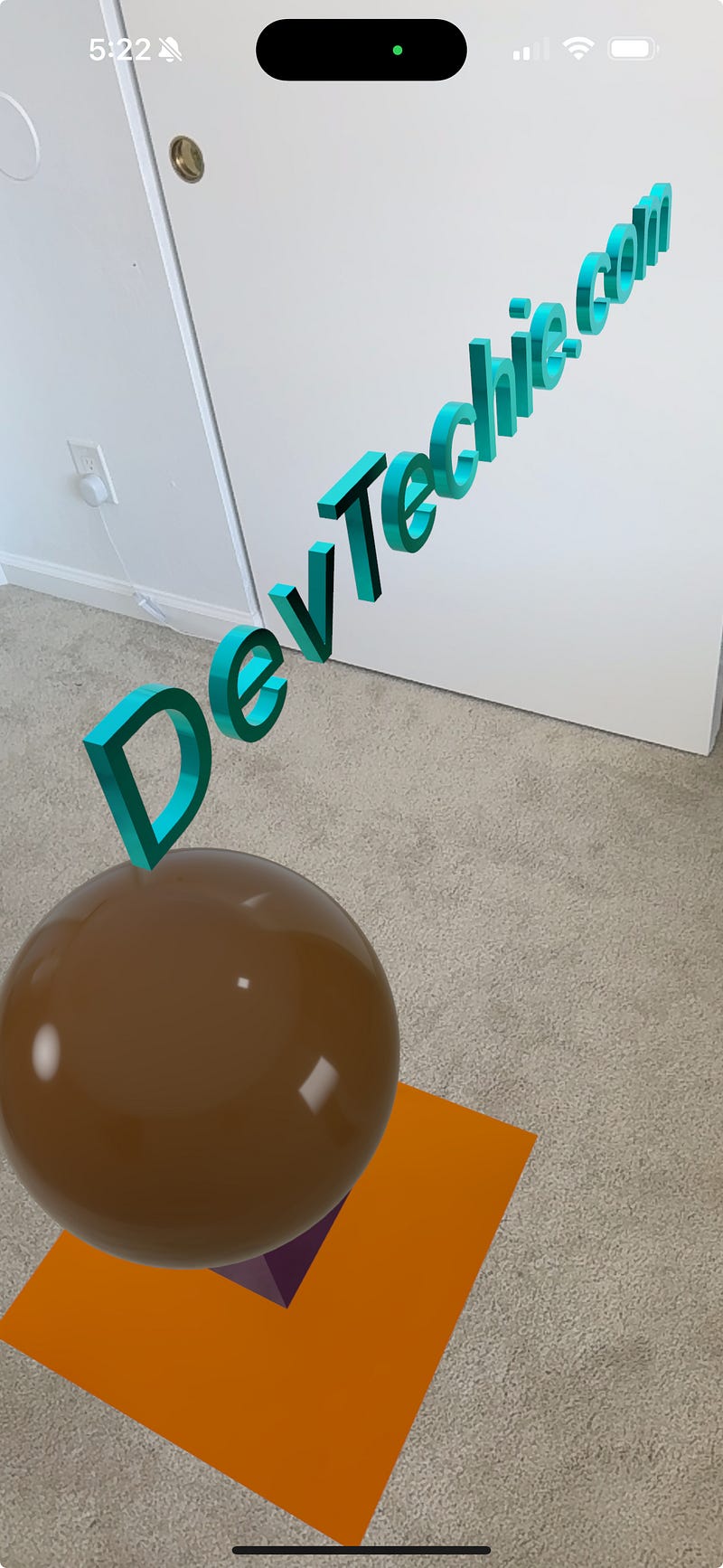
Apart from basic shapes, MeshResource also offers a convenient function for generating AR text. Let’s incorporate a text entity into the scene.
struct ARViewContainer: UIViewRepresentable {

    func makeUIView(context: Context) -> ARView {

        let arView = ARView(frame: .zero)

        let anchor = AnchorEntity(
            plane: .horizontal
        )

        let material = SimpleMaterial(
            color: .purple,
            isMetallic: true
        )

        let box = ModelEntity(
            mesh: .generateBox(
                size: 0.2
            ),
            materials: [material]
        )

        let hPlane = ModelEntity(
            mesh: .generatePlane(
                width: 0.5,
                depth: 0.5
            ),
            materials: [SimpleMaterial(
                color: .orange,
                isMetallic: true
            )]
        )

        let sphere = ModelEntity(
            mesh: .generateSphere(
                radius: 0.2
            ),
            materials: [SimpleMaterial(
                color: .brown,
                isMetallic: false
            )]
        )

        let dtText = ModelEntity(
            mesh: .generateText(
                "DevTechie.com",
                extrusionDepth: 0.02,
                font: .systemFont(
                    ofSize: 0.2
                ),
                alignment: .center
            ),
            materials: [SimpleMaterial(
                color: .cyan,
                isMetallic: true
            )]
        )


        box.position = simd_float3(0, 0.2, 0)
        sphere.position = simd_float3(0, 0.4, 0)
        dtText.position = simd_float3(0, 0.6, 0)

        anchor.addChild(hPlane)
        anchor.addChild(box)
        anchor.addChild(sphere)
        anchor.addChild(dtText)

        arView.scene.anchors.append(anchor)
        return arView

    }

    func updateUIView(_ uiView: ARView, context: Context) {}

}
Along with the basic shapes that we added using MeshResource, we can also use usdz files either exported from RealityComposer Pro or any other 3d modeling software.
Apple provides a few of them so we can download the model and include it inside our project. Download your choice of model from here: https://developer.apple.com/augmented-reality/quick-look/
Once the model is downloaded, add it to the project by dragging and dropping into the project explorer.

We selected chair model.
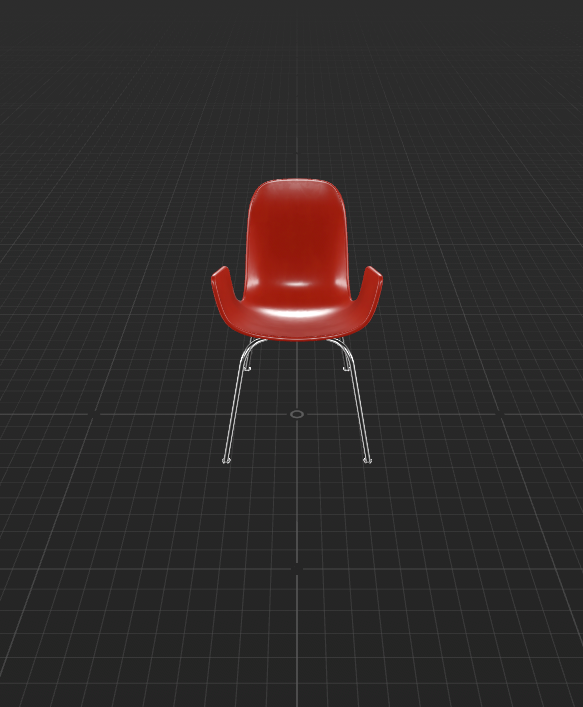
Let’s go ahead and add this into our AR scene. We will remove all the previously written code and add code to load the model file from the file system.
struct ARViewContainer: UIViewRepresentable {

    func makeUIView(context: Context) -> ARView {

        let arView = ARView(
            frame: .zero
        )

        let path = Bundle.main.path(
            forResource: "chair_swan",
            ofType: "usdz"
        )!
        let url = URL(
            fileURLWithPath: path
        )
        let scene = try! Entity.load(
            contentsOf: url
        )
        let anchor = AnchorEntity(
            plane: .horizontal
        )
        anchor.addChild(
            scene
        )
        arView.scene.anchors.append(
            anchor
        )

        return arView

    }

    func updateUIView(_ uiView: ARView, context: Context) {}

}
and just like that, we added a virtual chair in our room.
