- Apr 8, 2025
Mastering searchable in SwiftUI & iOS: A Complete Guide
- DevTechie
- SwiftUI
Introduced in iOS 15, the .searchable view modifier allows you to add a search bar to your SwiftUI views with minimal effort. It provides a built-in way to filter data, present suggestions, and even support search tokens on newer versions of iOS. Whether you’re building a list of items or a complex content view, .searchable adds modern, user-friendly search functionality with just a few lines of code.
In this article, we will explore everything from basic usage to advanced features like suggestions, placement, and tokens.
At its most basic form .searchable takes binding to the search string.
import SwiftUI

struct SearchableExample: View {
    @State private var searchText: String = ""
    var body: some View {
        NavigationStack {
            Text("DevTechie.com")
                .searchable(text: $searchText)
        }
    }
}
Other parameters to searchable includes
isPresented: a boolean binding that let’s you programmatically present the search field.
placement: indicates a preference for the search field location, default value is automatic but other values are navigationBarDrawer(to display search in navigation bar), sidebar(to display search in the sidebar of navigation view), toolbar(to display search in the toolbar)
prompt: a string that provides guidance to the user on what to search for.
suggestions: a ViewBuilder that provides search suggestions.
tokens: a ViewBuilder that provides a view to render a token.
Let’s expand our example to explore more on these in detail.
Lists are a perfect candidate to have a searchbar. As the list grows in size, so does the need to search for an item in the list, so we will work on a view just like that.
Imagine an app that lists courses from DevTechie.com. The app’s home view displays a lengthy list of courses, making it difficult to locate specific ones. Considering that we have over 30 courses and books available on our website, we should implement a search feature in the app to enhance user experience.
We will start with the data structure for the app
struct Course: Identifiable {
    let id = UUID()
    var name: String
    var price: String
    var lessons: Int
}
Let’s add all the DevTechie courses as sample for this
extension Course {
    static let courses: [Course] = [
        Course(name: "Background Timer App in SwiftUI", price: "$9.99", lessons: 11),
        Course(name: "iOS 18 HealthKit: Create Interactive Dashboards with SwiftUI", price: "$9.99", lessons: 15),
        Course(name: "Build a Powerful Document Scanner with SwiftUI in iOS 18 : A Complete Guide", price: "$9.99", lessons: 14),
        Course(name: "Weather App using CoreLocation, URLSession, UIKit, iOS 18", price: "$9.99", lessons: 11),
        Course(name: "Mini Apps in iOS", price: "$9.99", lessons: 3),
        Course(name: "Build Exchange Rate App: SwiftUI, iOS 18, Combine, MVVM", price: "$9.99", lessons: 10),
        Course(name: "Practical SwiftData in SwiftUI & iOS 17", price: "$9.99", lessons: 38),
        Course(name: "Building Complete Goals App in SwiftUI 5 & iOS 17", price: "$9.99", lessons: 35),
        Course(name: "Mastering PhaseAnimation in SwiftUI 5 & iOS 17", price: "$9.99", lessons: 6),
        Course(name: "ScrollViews in iOS 17 & SwiftUI 5", price: "$9.99", lessons: 14),
        Course(name: "Mastering CoreImage in UIKit", price: "$9.99", lessons: 13),
        Course(name: "Build Complete TaskList App in UIKit, CoreData, MVVM, Lottie", price: "$9.99", lessons: 22),
        Course(name: "Favorite Places App in iOS, SwiftUI, MVVM, CoreData", price: "$9.99", lessons: 19),
        Course(name: "Build WatchOS Timer App in SwiftUI 4 using MVVM", price: "$9.99", lessons: 10),
        Course(name: "SwiftUI Graphics Programming With Example", price: "$9.99", lessons: 7),
        Course(name: "Birthday App using Core Data with CRUD : iOS 16 & Swift UI 4", price: "$9.99", lessons: 16),
        Course(name: "Mastering WidgetKit in SwiftUI 4, iOS 16", price: "$9.99", lessons: 145),
        Course(name: "Mastering Charts Framework in SwiftUI 4 & iOS 16", price: "$9.99", lessons: 34),
        Course(name: "Photo Gallery App in SwiftUI 4, iOS 16 & PhotosPicker", price: "$9.99", lessons: 10),
        Course(name: "What's in in SwiftUI 4: Learn by Building 15 Examples", price: "$9.99", lessons: 15),
        Course(name: "Introducing Maps in SwiftUI using MapKit", price: "$9.99", lessons: 9),
        Course(name: "Complete E-Commerce App in SwiftUI 3, iOS 15 and Apple Pay", price: "$9.99", lessons: 17),
        Course(name: "Food Recipes App in SwiftUI 3 & iOS 15 with Lottie Animation", price: "$9.99", lessons: 17),
        Course(name: "Build Strava Clone in iOS using MapKit, Realm and UIKit", price: "$9.99", lessons: 16),
        Course(name: "Top Destinations App in SwiftUI w/ Maps & Lottie Animation", price: "$9.99", lessons: 12),
        Course(name: "Complete Reference for Text View in SwiftUI 3 and iOS 15", price: "$9.99", lessons: 28),
        Course(name: "HealthKit Integration in SwiftUI", price: "$9.99", lessons: 10),
        Course(name: "DevTechie Video Courses App in SwiftUI, AVPlayer, MVVM, iOS", price: "$9.99", lessons: 12),
        Course(name: "Pantry Management App using MVVM, SwiftUI 2, iOS 14, Firebase Firestore and Analytics", price: "$9.99", lessons: 18),
        Course(name: "Pantry Management App using MVVM, SwiftUI 3, iOS 15 & Firebase", price: "$9.99", lessons: 17),
        Course(name: "Mastering SwiftUI 3: iOS App Development Bootcamp", price: "$9.99", lessons: 61),
        Course(name: "iOS 15 Widgets in SwiftUI 3 & WidgetKit", price: "$9.99", lessons: 10),
        Course(name: "Disney Plus Clone in SwiftUI with Remote Url Video Player", price: "$9.99", lessons: 27),
        Course(name: "Goals App: SwiftUI 3, iOS 15, Protocols, MVVM, Firebase", price: "$9.99", lessons: 21)
    ]
}
Next, we will create a card view to display each course and its details
struct CourseCardView: View {
    var course: Course

    var body: some View {
        VStack(alignment: .leading, spacing: 8) {
            CourseTitleCard(title: "DevTechie.com", subtitle: course.name)

            HStack {
                Text("\(course.lessons) Lessons")
                    .font(.subheadline)
                    .foregroundStyle(.secondary)
                Spacer()
                Text(course.price)
                    .font(.subheadline.bold())
                    .padding(6)
                    .background(Color.blue.opacity(0.1))
                    .foregroundStyle(.blue)
                    .clipShape(RoundedRectangle(cornerRadius: 8))
            }
        }
        .padding()
        .background(Color(.systemBackground))
        .cornerRadius(12)
        .shadow(color: Color.black.opacity(0.1), radius: 5, x: 2, y: 2)
    }
}
This View utilizes another view called CourseTitleCard to display the course title. Let’s also add that view.
struct CourseTitleCard: View {
    var title: String
    var subtitle: String

    var body: some View {
        ZStack {
            MeshGradient(width: 2, height: 2, points: [
                [0, 0], [1, 0], [0, 1], [1, 1]
            ], colors: [.orange, .pink, .purple, .blue])
            .blur(radius: 10)
            .ignoresSafeArea()

            VStack(spacing: 16) {
                Text(title)
                    .font(.system(size: 32, weight: .bold, design: .rounded))
                    .foregroundStyle(.white)

                Text(subtitle)
                    .font(.title3)
                    .foregroundStyle(.white.gradient)
                    .multilineTextAlignment(.center)
            }
            .padding()
            .cornerRadius(16)
        }
        .frame(height: 250)
        .clipShape(.rect(topLeadingRadius: 40, bottomTrailingRadius: 40))
    }
}
We are ready to add this card into a list so let’s update SearchableExample view.
import SwiftUI

struct SearchableExample: View {
    @State private var searchText: String = ""
    var body: some View {
        NavigationStack {
            List {
                ForEach(Course.courses) { course in
                    CourseCardView(course: course)
                }
                .listRowSeparator(.hidden)
            }
            .listStyle(.plain)
            .navigationTitle("DevTechie Courses")
        }
    }
}

#Preview {
    SearchableExample()
}
As you can see, we have a variety of courses, which clearly indicates that our app is ready for search functionality. We can achieve this with the searchable modifier.
Let’s add search textfield first.
import SwiftUI

struct SearchableExample: View {
    @State private var searchText: String = ""
    var body: some View {
        NavigationStack {
            List {
                ForEach(Course.courses) { course in
                    CourseCardView(course: course)
                }
                .listRowSeparator(.hidden)
            }
            .listStyle(.plain)
            .navigationTitle("DevTechie Courses")
            .searchable(text: $searchText) // searchable
        }
    }
}
The search bar looks visually appealing, but its functionality is limited. We can enhance its capabilities by refactoring our code. Let’s revise our code once more.
We will create a new computed property called filteredCourses. If the search field is empty, it will return all courses. Otherwise, it will return filtered results based on the search term.
import SwiftUI

struct SearchableExample: View {
    @State private var searchText: String = ""
    var filteredCourses: [Course] {
          if searchText.isEmpty {
              return Course.courses
          } else {
              return Course.courses.filter { $0.name.lowercased().contains(searchText.lowercased()) }
          }
      }
    var body: some View {
        NavigationStack {
            List {
                ForEach(filteredCourses) { course in
                    CourseCardView(course: course)
                }
                .listRowSeparator(.hidden)
            }
            .listStyle(.plain)
            .navigationTitle("DevTechie Courses")
            .searchable(text: $searchText)
        }
    }
}
So far, we have been using a searchable field with a default placement value of automatic, which means the system decides where the search bar should be placed based on the context under which app is running. However, we can always change this by adding a placement parameter.
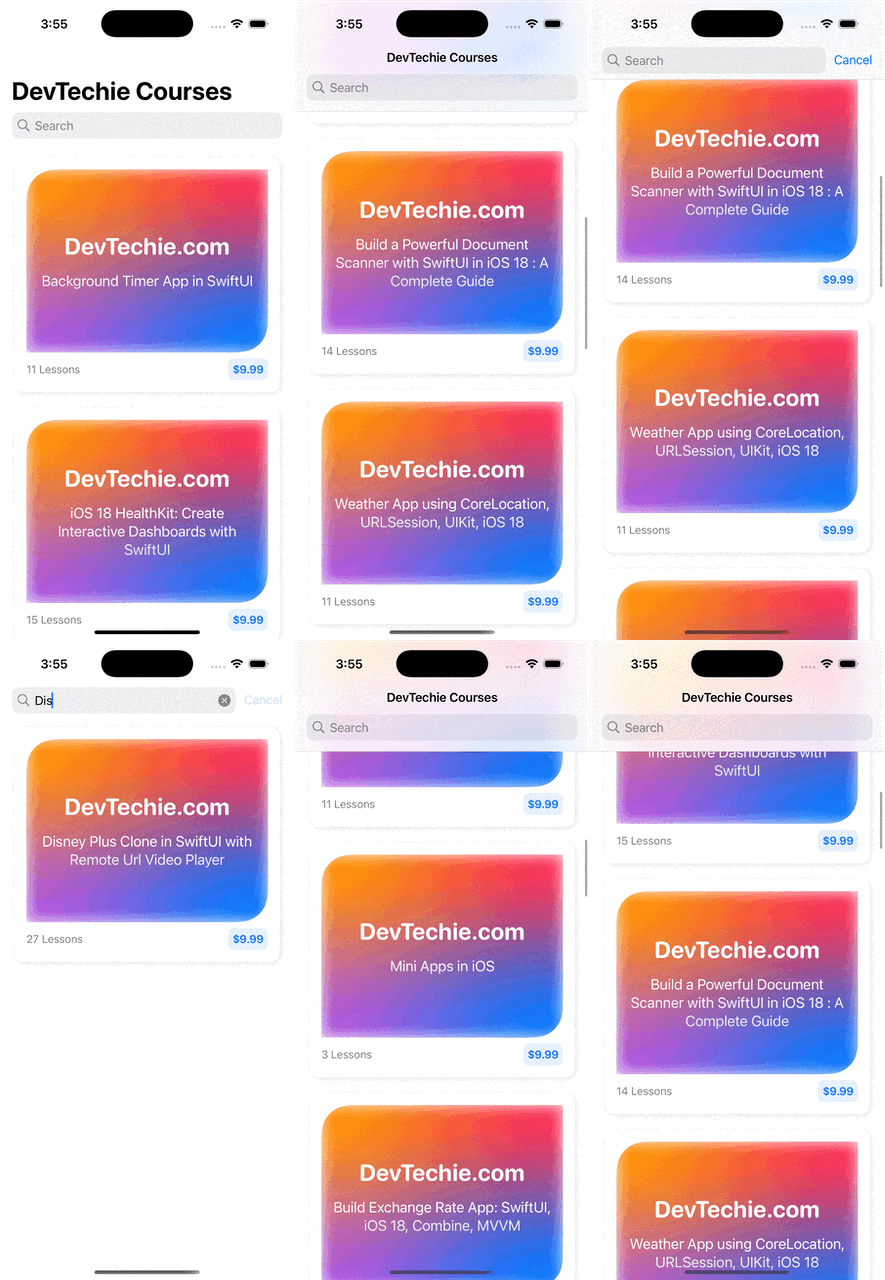
Let’s add a feature to always display the search bar all the time instead of hiding it when the user scrolls.
struct SearchableExample: View {
    @State private var searchText: String = ""
    var filteredCourses: [Course] {
          if searchText.isEmpty {
              return Course.courses
          } else {
              return Course.courses.filter { $0.name.lowercased().contains(searchText.lowercased()) }
          }
      }
    var body: some View {
        NavigationStack {
            List {
                ForEach(filteredCourses) { course in
                    CourseCardView(course: course)
                }
                .listRowSeparator(.hidden)
            }
            .listStyle(.plain)
            .navigationTitle("DevTechie Courses")
            .searchable(text: $searchText, placement: .navigationBarDrawer(displayMode: .always))
        }
    }
}
By default, the search bar will display the prompt text “Search” to guide users on what to enter in the text box. However, if we wish to customize the prompt, we can do so by using the prompt parameter.
struct SearchableExample: View {
    @State private var searchText: String = ""
    var filteredCourses: [Course] {
          if searchText.isEmpty {
              return Course.courses
          } else {
              return Course.courses.filter { $0.name.lowercased().contains(searchText.lowercased()) }
          }
      }
    var body: some View {
        NavigationStack {
            List {
                ForEach(filteredCourses) { course in
                    CourseCardView(course: course)
                }
                .listRowSeparator(.hidden)
            }
            .listStyle(.plain)
            .navigationTitle("DevTechie Courses")
            .searchable(text: $searchText, prompt: Text("Search DevTechie Courses"))
        }
    }
}
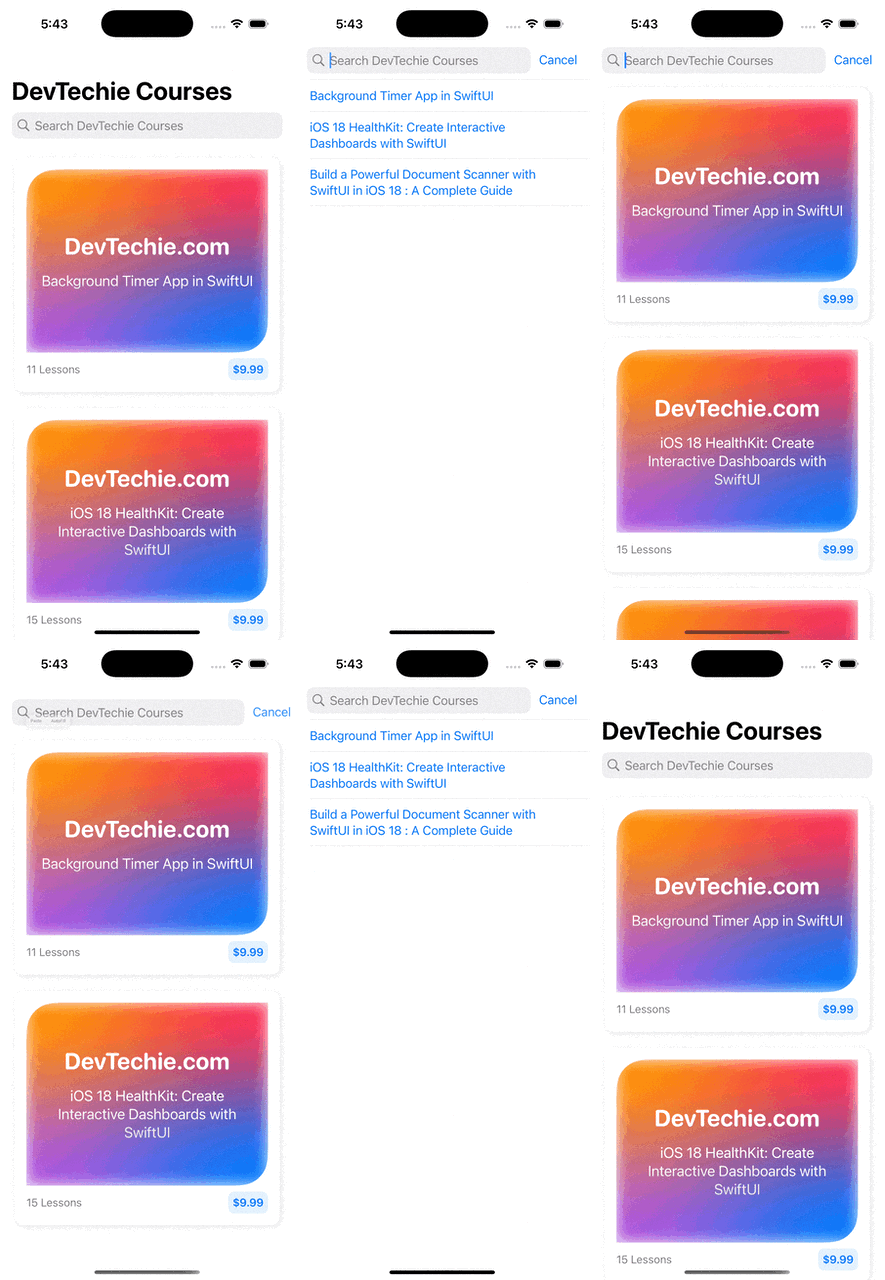
The .searchable modifier also offers a completion capability. This could be a list of items, such as past searches by the user or generated by the model. Let’s implement this feature by incorporating logic to suggest top 3 courses from the list.
struct SearchableExample: View {
    @State private var searchText: String = ""
    var filteredCourses: [Course] {
          if searchText.isEmpty {
              return Course.courses
          } else {
              return Course.courses.filter { $0.name.lowercased().contains(searchText.lowercased()) }
          }
      }
    var body: some View {
        NavigationStack {
            List {
                ForEach(filteredCourses) { course in
                    CourseCardView(course: course)
                }
                .listRowSeparator(.hidden)
            }
            .listStyle(.plain)
            .navigationTitle("DevTechie Courses")
            .searchable(text: $searchText, prompt: Text("Search DevTechie Courses")) {
                ForEach(Course.courses.prefix(3), id: \.id) { course in
                    Text(course.name).searchCompletion(course.name)
                }
            }
        }
    }
}
We can enhance this app by incorporating logic to save recent searches from the user. Let’s add a temporary caching mechanism to store recent searches. In a real world scenario, this search history cache should be persistent and retrieved from the persistence store.
We will add a new property of type Set<String> to store only unique searches.
struct SearchableExample: View {
    @State private var searchText: String = ""
    @State private var recentSearches: Set<String> = []
Replace the search suggestion code block with the recentSearches.
ForEach(recentSearches.sorted(), id: \.self) { search in
                    Text(search).searchCompletion(search.lowercased())
                }
We will use the onSubmit for search action to capture recent searches and store them in the recentSearches set.
.onSubmit(of: .search) {
                recentSearches.insert(searchText.lowercased())
                print(recentSearches)
            }
Complete code should look like this
import SwiftUI

struct SearchableExample: View {
    @State private var searchText: String = ""
    @State private var recentSearches: Set<String> = []
    var filteredCourses: [Course] {
          if searchText.isEmpty {
              return Course.courses
          } else {
              return Course.courses.filter { $0.name.lowercased().contains(searchText.lowercased()) }
          }
      }
    var body: some View {
        NavigationStack {
            List {
                ForEach(filteredCourses) { course in
                    CourseCardView(course: course)
                }
                .listRowSeparator(.hidden)
            }
            .listStyle(.plain)
            .navigationTitle("DevTechie Courses")
            .searchable(text: $searchText, prompt: Text("Search DevTechie Courses")) {
                ForEach(recentSearches.sorted(), id: \.self) { search in
                    Text(search).searchCompletion(search.lowercased())
                }
            }
            .onSubmit(of: .search) {
                recentSearches.insert(searchText.lowercased())
                print(recentSearches)
            }
        }
    }
}
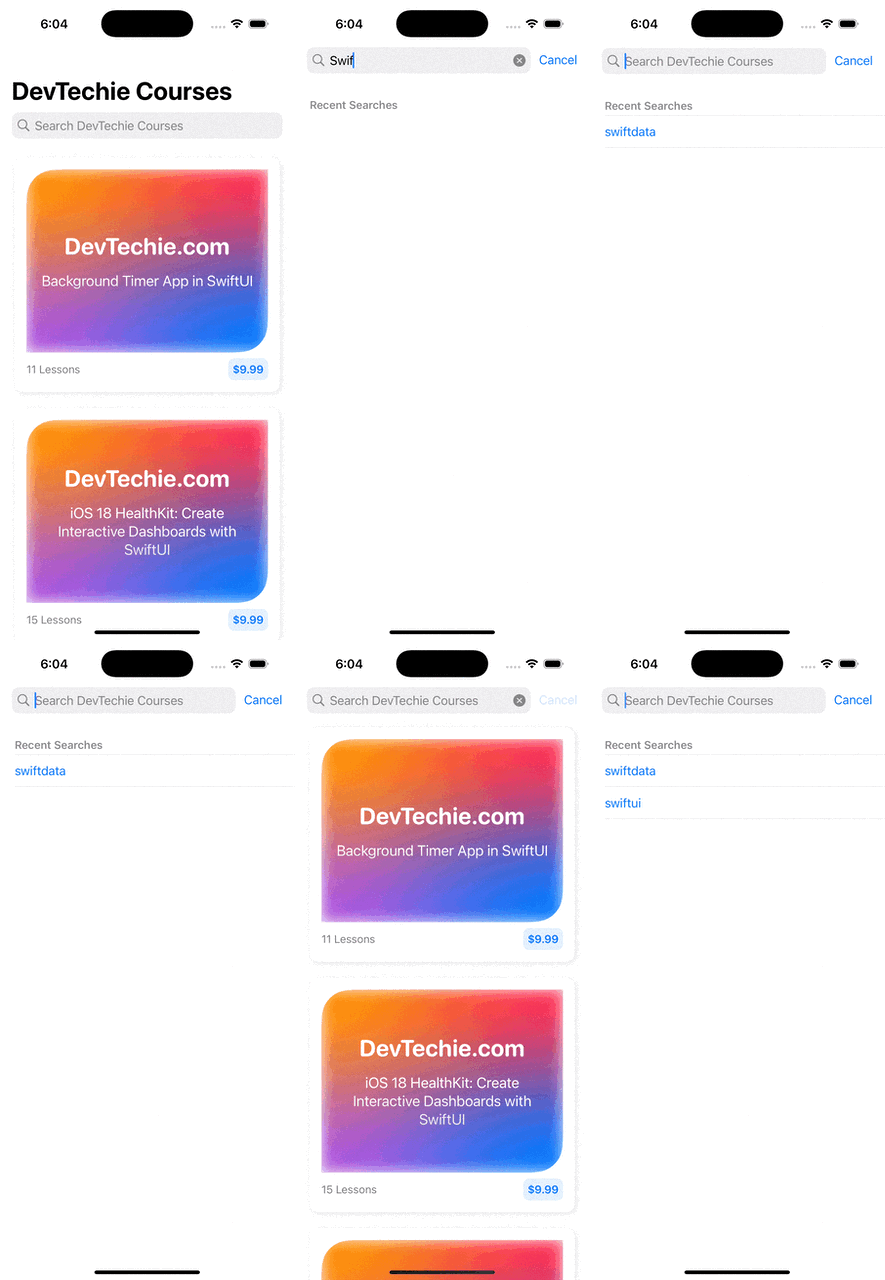
We are presenting suggestions, but it’s unclear what those search terms are. Users will gradually discover their own search terms over time. However, a good design should always explicitly mention the obvious. Let’s do that. We will add a section header to clearly indicate the meaning of those suggestions.
.searchable(text: $searchText, prompt: Text("Search DevTechie Courses")) {
                Section(header: Text("Recent Searches")) {
                    ForEach(recentSearches.sorted(), id: \.self) { search in
                        Text(search).searchCompletion(search.lowercased())
                    }
                }
            }
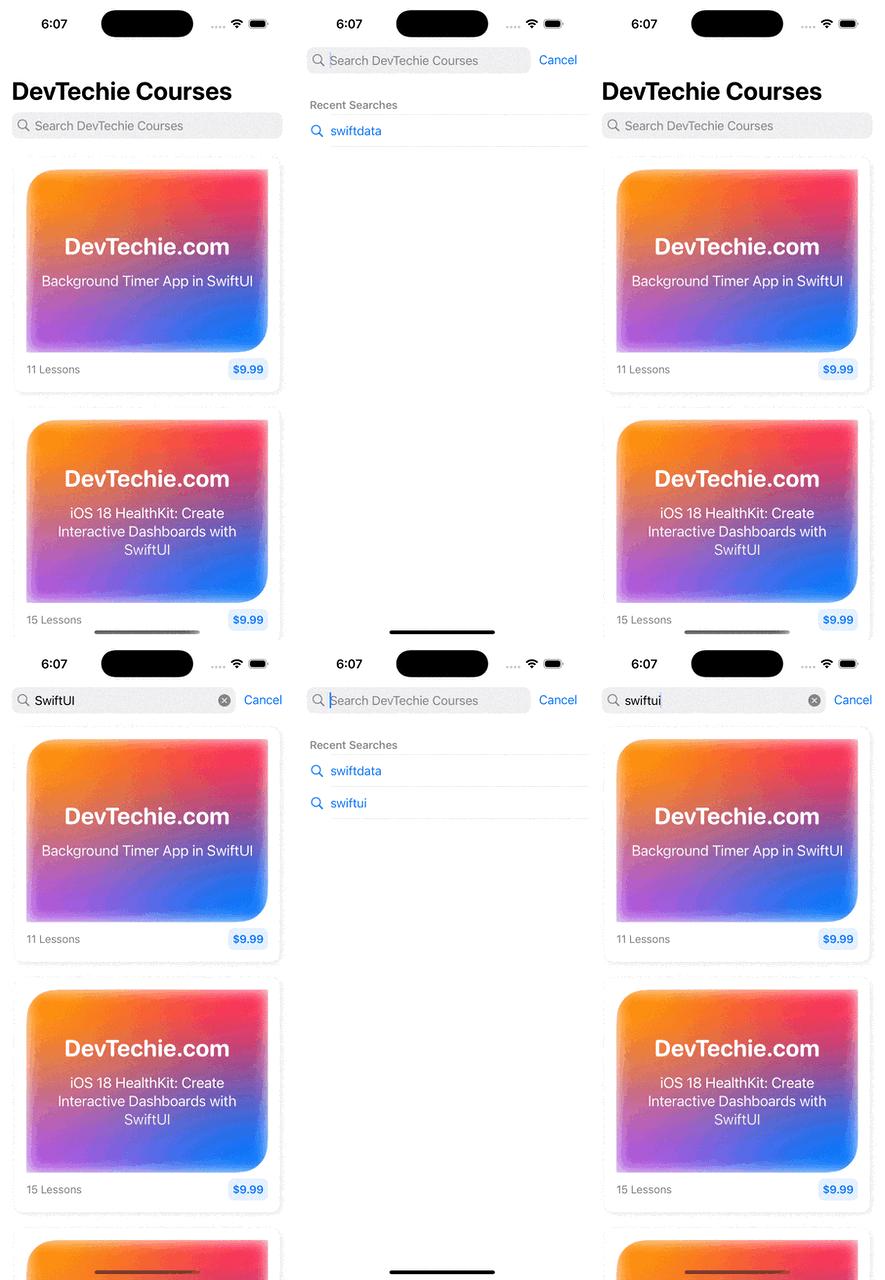
We can enhance the design by replacing the Text view with a Label view, which will display an icon beside the recent search suggestion.
 Section(header: Text("Recent Searches")) {
                    ForEach(recentSearches.sorted(), id: \.self) { search in
                        Label(search, systemImage: "magnifyingglass").searchCompletion(search.lowercased())
                    }
                }
Visit us at https://www.devtechie.com