- May 22
Creating Reflections in SwiftUI Canvas
- DevTechie
- SwiftUI
SwiftUI’s Canvas gives you direct access to a low-level drawing environment while still keeping the declarative nature of SwiftUI. Instead of composing views with stacks and modifiers alone, you can render graphics, gradients, symbols, and transformations manually.
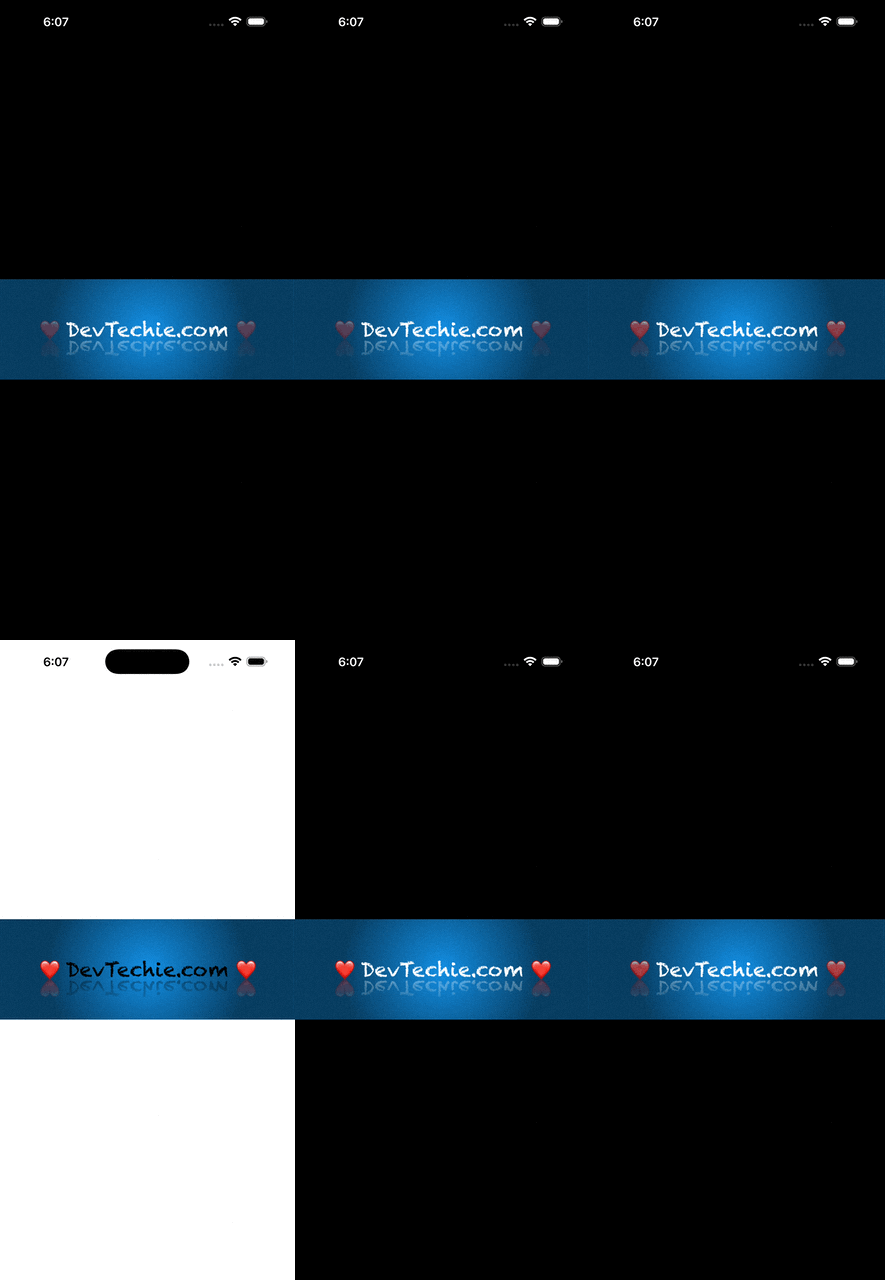
In this tutorial, we will build a glowing reflection effect using Canvas. The final result draws a custom view, flips it vertically, and applies a fading mask to simulate a realistic reflection.
This technique is useful for:
Glassmorphism interfaces
Media player UIs
Arcade-style animations
Futuristic dashboards
Custom visual effects
Here is the complete implementation:
import SwiftUI

struct ExampleView: View {
    var body: some View {

        Canvas { context, size in

            let rect = CGRect(origin: .zero, size: size)
            let midPoint = CGPoint(x: size.width/2, y: size.height/2)

            // Add a gradient background
            let lightBlue = Color(.sRGB, red: 0.07, green: 0.56, blue: 0.89, opacity: 1.0)
            let darkBlue = Color(.sRGB, red: 0.03, green: 0.24, blue: 0.38, opacity: 1.0)

            context.fill(Path(rect), with: .radialGradient(Gradient(colors: [lightBlue, darkBlue]),
                                                           center: midPoint,
                                                           startRadius: 0,
                                                           endRadius: min(size.width, size.height)))

            // Resolve the view
            if let resolved = context.resolveSymbol(id: 1) {
                // Draw original view
                context.draw(resolved, at: midPoint, anchor: .center)

                let reflectionOrigin = CGPoint(x: midPoint.x, y: midPoint.y - resolved.size.height + 10)

                // Invert view
                context.scaleBy(x: 1, y: -1)
                context.translateBy(x: 0, y: -size.height)

                // Add cliping with a gradient that will make the reflection to fade
                context.clipToLayer(opacity: 1.0, options: .inverse) { layerContext in
                    var pathOrigin = reflectionOrigin
                    pathOrigin.x -= resolved.size.width
                    pathOrigin.y -= resolved.size.height

                    layerContext.fill(Path(rect),
                                      with: .linearGradient(Gradient(colors: [.black.opacity(0.7), .black]),
                                                            startPoint: CGPoint(x: 0, y: midPoint.y - resolved.size.height / 2.0),
                                                            endPoint: CGPoint(x: 0, y: midPoint.y - (1.5 * resolved.size.height)),
                                                            options: .linearColor))
                }

                // Draw the "reflection" view
                context.draw(resolved, at: reflectionOrigin, anchor: .center)
            }

        } symbols: {
            MessageView()
                .font(.custom("Chalkduster", size: 30))
                .tag(1)
        }
        .frame(height: 150)
    }

    struct MessageView: View {
        @State var isOn = false

        var body: some View {
            HStack(spacing: 10) {
                Text("❤️").opacity(isOn ? 1.0 : 0.3)

                Text("DevTechie.com")

                Text("❤️").opacity(isOn ? 1.0 : 0.3)
            }
            .onAppear {
                withAnimation(.easeInOut(duration: 0.7).repeatForever()) {
                    isOn.toggle()
                }
            }

        }
    }
}

#Preview {
    ExampleView()
}
Understanding Canvas
Canvas is a drawing surface introduced in SwiftUI that allows you to render graphics using a GraphicsContext.
Canvas { context, size inThe closure provides:
context→ the drawing enginesize→ available canvas dimensions
Unlike regular SwiftUI views, Canvas works more like Core Graphics. You manually tell it what to draw and where to draw it.
This gives you fine-grained control over:
gradients
transforms
layers
masks
symbols
custom paths
Creating the Background
The first step is building the glowing radial background.
let rect = CGRect(origin: .zero, size: size)This creates a rectangle matching the entire canvas size.
Next, we define two custom colors:
let lightBlue = Color(.sRGB, red: 0.07, green: 0.56, blue: 0.89, opacity: 1.0)
let darkBlue = Color(.sRGB, red: 0.03, green: 0.24, blue: 0.38, opacity: 1.0)
Now we fill the canvas using a radial gradient.
context.fill(
    Path(rect),
    with: .radialGradient(
        Gradient(colors: [lightBlue, darkBlue]),
        center: midPoint,
        startRadius: 0,
        endRadius: min(size.width, size.height)
    )
)
The gradient starts at the center and expands outward.
The result creates depth immediately. Instead of a flat background, the canvas now feels illuminated.
Using Symbols in Canvas
One of the most powerful features of Canvas is symbol rendering.
Inside the symbols closure, we define reusable SwiftUI views:
symbols: {
    MessageView()
        .font(.custom("Chalkduster", size: 30))
        .tag(1)
}
A symbol is essentially a SwiftUI view that can later be resolved and drawn inside the canvas.
To access it:
if let resolved = context.resolveSymbol(id: 1)This converts the SwiftUI view into a drawable object.
Now we can render it anywhere:
context.draw(resolved, at: midPoint, anchor: .center)This draws the message in the center of the canvas.
Understanding Coordinate Transformations
The reflection effect is created using coordinate transformations.
First we define where the reflection should appear.
let reflectionOrigin = CGPoint(
    x: midPoint.x,
    y: midPoint.y - resolved.size.height + 10
)
Now comes the important part.
context.scaleBy(x: 1, y: -1)This flips the entire coordinate system vertically.
Anything drawn afterward becomes upside down.
But flipping also moves the coordinate system outside the visible region, so we translate it back.
context.translateBy(x: 0, y: -size.height)Together these transformations create a mirrored drawing environment.
This is one of the core concepts behind custom graphics programming:
scale transforms size/direction
translate moves coordinates
rotation changes orientation
Instead of modifying views directly, you manipulate the coordinate system itself.
Creating the Reflection Fade
A perfect mirror reflection looks fake.
Real reflections gradually fade out.
To simulate this, we use clipping with a gradient mask.
context.clipToLayer(opacity: 1.0, options: .inverse) { layerContext inThis creates a temporary layer that can be masked independently.
Inside the layer we apply a linear gradient.
layerContext.fill(
    Path(rect),
    with: .linearGradient(
        Gradient(colors: [.black.opacity(0.7), .black]),
        startPoint: CGPoint(
            x: 0,
            y: midPoint.y - resolved.size.height / 2.0
        ),
        endPoint: CGPoint(
            x: 0,
            y: midPoint.y - (1.5 * resolved.size.height)
        ),
        options: .linearColor
    )
)
This gradient controls the visibility of the reflection.
The top remains more visible while the bottom fades away naturally.
The effect feels significantly more realistic than simply lowering opacity.
Drawing the Reflection
Once the coordinate system is flipped and the mask is applied, we draw the symbol again.
context.draw(resolved, at: reflectionOrigin, anchor: .center)Because the coordinate system is inverted, the symbol appears mirrored.
This is an important concept:
we are not creating a second reversed view manually.
We are drawing the exact same view in a transformed coordinate space.
That makes the reflection:
efficient
reusable
perfectly synchronized
If the original view animates, the reflection updates automatically.
Building the Animated MessageView
The reflected content is a regular SwiftUI view.
struct MessageView: View {The hearts pulse using state-driven animation.
@State var isOn = falseOpacity changes depending on the state value.
Text("❤️").opacity(isOn ? 1.0 : 0.3)Then we animate forever:
withAnimation(
    .easeInOut(duration: 0.7)
        .repeatForever()
) {
    isOn.toggle()
}
Because the symbol itself animates, both the original view and its reflection animate together automatically.
This is where Canvas becomes extremely powerful:
you combine declarative SwiftUI views with procedural drawing effects.
Why Canvas Matters
Most SwiftUI developers never move beyond stacks and modifiers.
But Canvas unlocks an entirely different layer of UI development.
You can create:
particle systems
custom shaders
reflections
wave animations
procedural art
advanced masking effects
interactive visualizations
Without dropping into UIKit or Core Animation.
For graphics-heavy interfaces, Canvas is one of the most important APIs in SwiftUI.
Final Thoughts
This reflection effect demonstrates several important graphics concepts:
symbol rendering
gradients
coordinate transformations
clipping layers
masking
procedural drawing
The biggest mental shift is understanding that graphics programming is often about transforming the drawing environment rather than transforming individual views.
Once that clicks, effects like reflections, shadows, distortions, and perspective become much easier to build.
Canvas gives SwiftUI developers access to an entirely new category of visual effects while still staying inside SwiftUI’s ecosystem.