- Aug 22, 2025
Analyzing Images for Safety with Azure Content Safety
- DevTechie Inc
- Azure Computer Vision
The following guide outlines the process of using the Azure Content Safety service to programmatically analyze images for potentially harmful content. This article walks you through the key steps of setting up the service and building a wrapper API to perform the analysis.
Step 1: Create the Azure Content Safety Resource
Your first step is to create an Azure Content Safety resource within the Azure portal. This resource acts as the central hub for your service, providing the necessary endpoints and access keys for your application to communicate with it.
Sign in to the Azure portal.
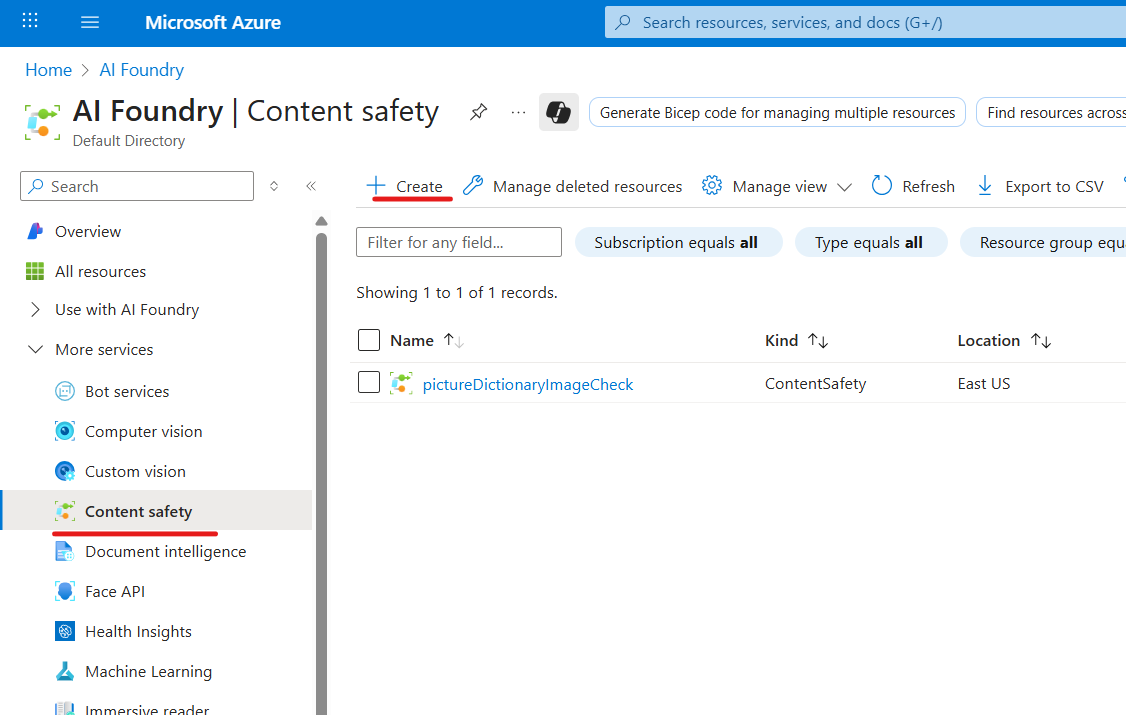
Search for and select “Content Safety” from the marketplace.
Create a new resource, providing your subscription, resource group, region, and a unique name.
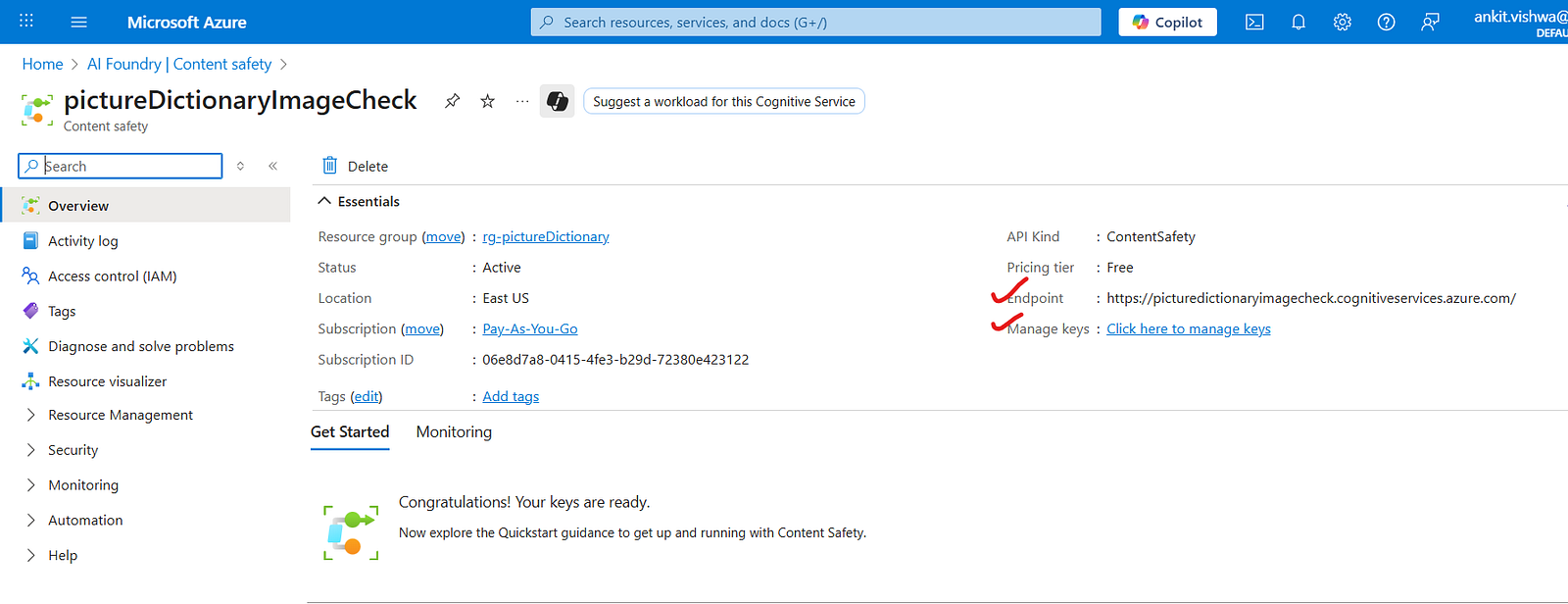
Once deployed, navigate to the “Keys and Endpoint” section of your new resource to securely retrieve your endpoint URL and access keys.
Below is the screenshot of Azure portal how we can create the required service.
In the below screenshot we can see endpoints and keys.
Step 2: Build a .net core Wrapper API
To easily integrate the content safety service into your applications, it’s recommended to build a wrapper API. This tutorial demonstrates creating a .NET Core web API that handles the image upload and interaction with the Azure service.
The primary function of this API is to:
Receive an image (e.g., uploaded via a form).
Send the image to the Azure Content Safety resource for analysis.
Process the analysis results, which include content categories and severity scores.
Return the results to the user.
Below is the code snippet:
// Define an HTTP POST endpoint named "imagecontent"
[HttpPost("imagecontent")]
public async Task<IActionResult> GetImageContent([FromForm] IFormFile uploadedFile)
{
    // Check if the uploaded file is null or empty
    if (uploadedFile == null || uploadedFile.Length == 0)
        return BadRequest("No file was uploaded."); // Return a 400 Bad Request response if no file is provided

    try
    {
        // Retrieve the Content Safety API endpoint and API key from constants
        string endpoint = Helper.AzureAIConstants.ContentSafteyEndpoint;
        string apiKey = AzureAIConstants.ContentSafteyApiKey;

        // Initialize the ContentSafetyClient with the endpoint and API key
        var client = new ContentSafetyClient(new Uri(endpoint), new AzureKeyCredential(apiKey));

        // Open a readable stream for the uploaded file
        using var stream = uploadedFile.OpenReadStream();

        // Convert the file stream into BinaryData for processing
        var imageData = await BinaryData.FromStreamAsync(stream);

        // Create a ContentSafetyImageData object from the binary data
        var image = new ContentSafetyImageData(imageData);

        // Create options for analyzing the image
        var options = new AnalyzeImageOptions(image);

        // Call the Content Safety API to analyze the image
        var result = await client.AnalyzeImageAsync(options);

        // Initialize a list to store detected categories
        var categories = new List<object>();

        // Check if the result is not null
        if (result != null)
        {
            // Iterate through the categories analysis in the result
            foreach (var category in result?.Value?.CategoriesAnalysis)
            {
                // Add each category and its severity to the list
                categories.Add(new
                {
                    Category = category.Category.ToString(), // Name of the category (Hate, Sexual, Violence,Self-Harm)
                    //By combining these categories and severity scores,
                    //you can set thresholds(for example, block all “Violence” with severity ≥ 4) to automate moderation decisions.
                    Severity = category.Severity.ToString()  // Severity level of the category (0-Safe, 2-Low, 4-Medium, 6-High)
                });
            }
        }

        // Return a 200 OK response with the analysis result
        return Ok(new
        {
            ImageClassification = categories.Count > 0 ? "Sensitive content detected" : "No sensitive content detected", // Classification message
            Categories = categories // List of detected categories
        });
    }
    catch (Exception ex)
    {
        // Catch any exceptions and return a 500 Internal Server Error response with the error message
        return StatusCode(StatusCodes.Status500InternalServerError, ex.Message);
    }
}
Step 3: Test and Analyze the API
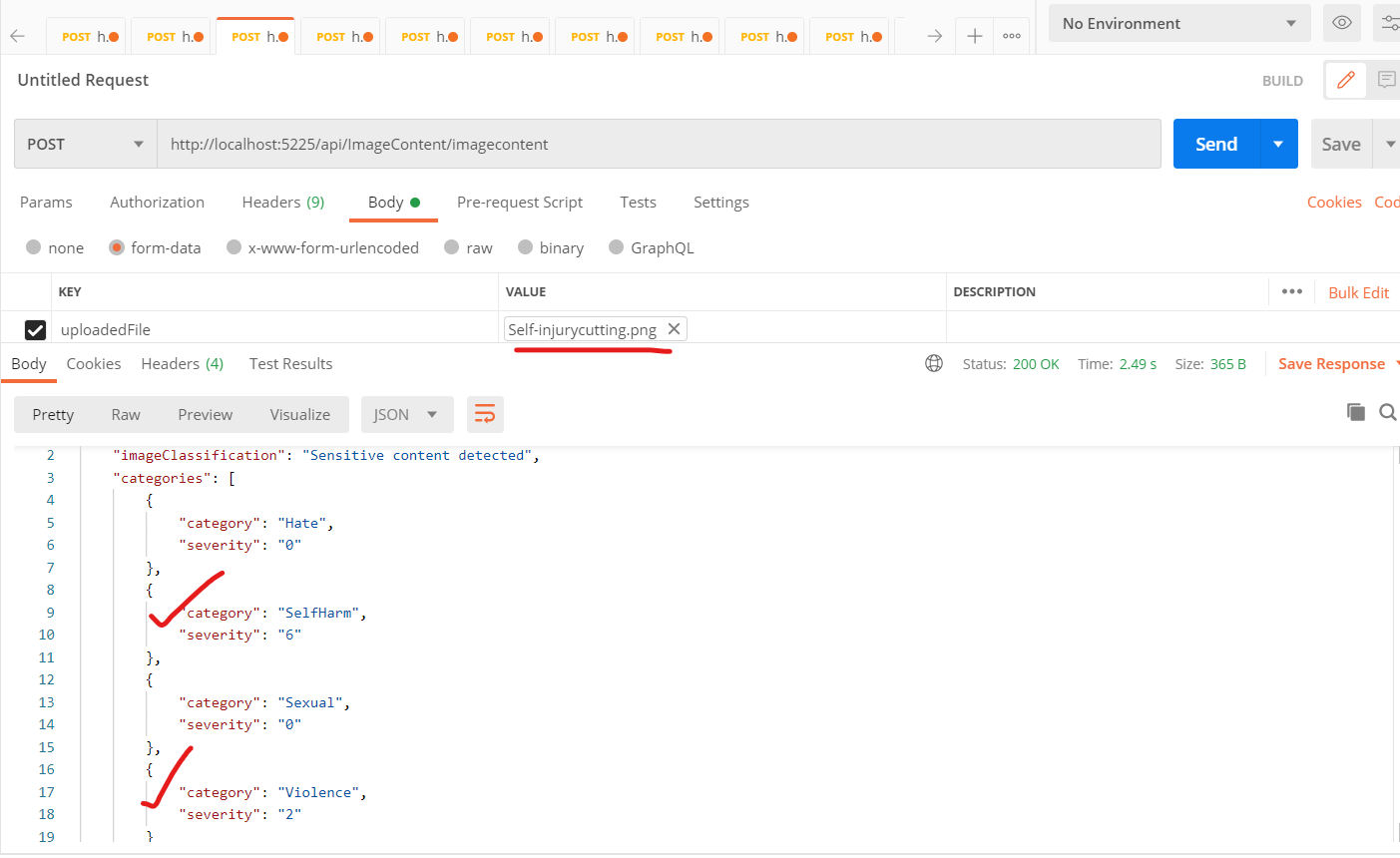
With the API built, the final step is to test its functionality. The video uses Postman to upload a sample image containing sensitive content, specifically an image related to self-harm.
The API then returns a response from the Azure Content Safety service, providing a detailed breakdown of the detected content. The results include a severity score for various categories like “Self Harm” and “Violence”, indicating the confidence level of the detection. A score of 0 means the content was not detected, while a score of 2 signifies a high level of severity. This confirms that the service is successfully identifying and categorizing potentially harmful content in the images you submit.
Below is the image we are using for testing purpose:

Below is the screen shot of response:
You can watch the full tutorial to see the process in action here: